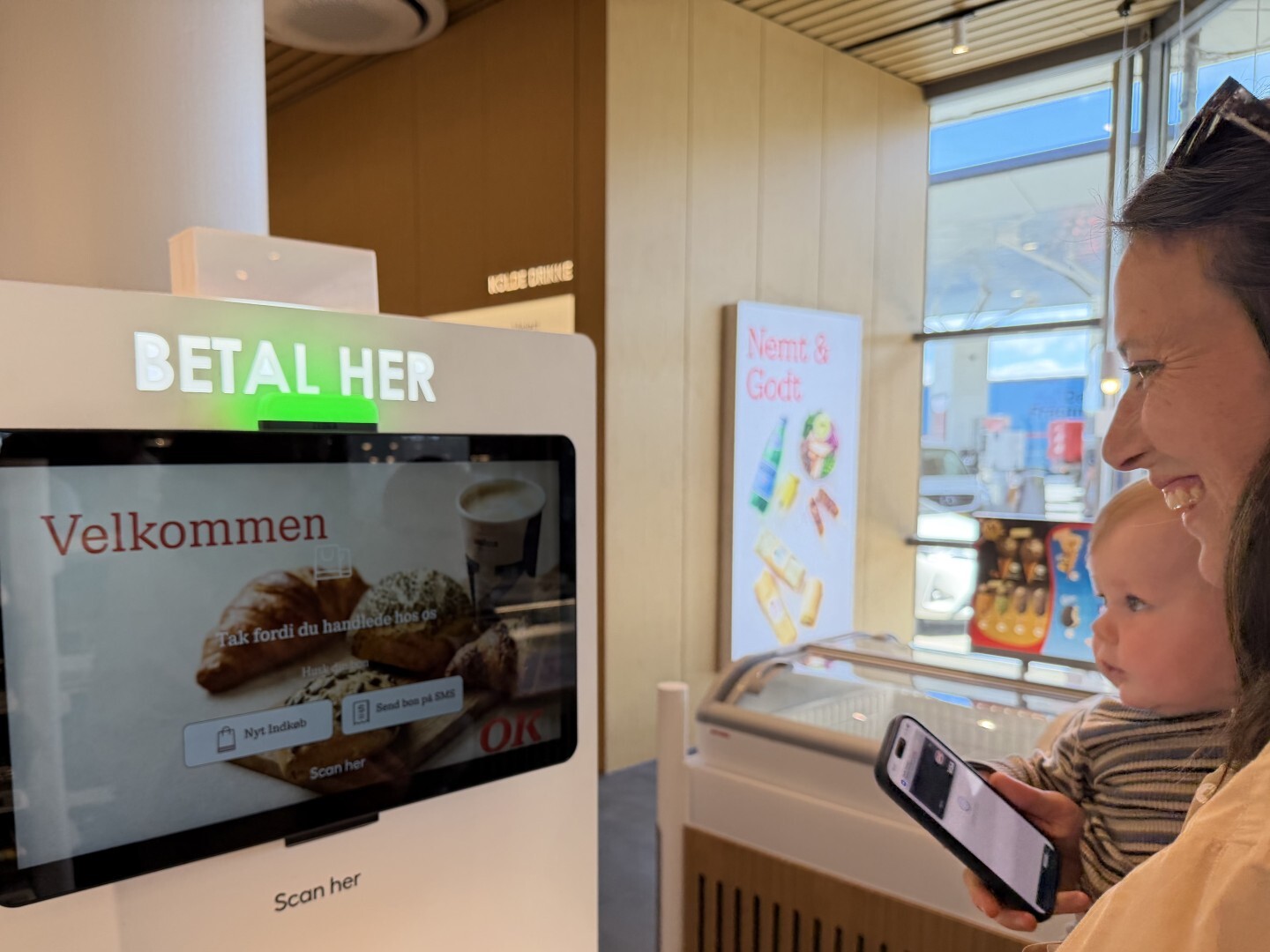
Checkout flows have more moving parts than ever.
They also have to work when the store is busy. A quantity may need to be changed, an article should be easy to recognize in the journal, and the POS should guide the cashier without slowing down the task.
That puts pressure on the tools behind the POS experience.
The latest POS Designer improvements give teams more control from design to live checkout. The updates make it easier to work with standard templates, adjust POS layouts, validate flow behavior, support cashier input, and follow up when something needs attention in production.
In short: more confidence before changes reach the store, and fewer rough edges when they do.
Where design work meets checkout reality
POS Designer is used to build and adjust the POS interfaces that store teams rely on during checkout.
In that work, templates, prompts, input fields, layout states, article information, and cashier actions all need to fit together. When the design works, the flow feels clear. The right prompt appears at the right time, the layout supports the task, and the POS behaves as expected.
That clarity depends on design tools that help teams understand what they are building, test how it behaves, and adjust the experience before it reaches the store.
The latest improvements strengthen that link between design work and live checkout.
Teams can now see when a standard template was last updated and which version it is based on when creating a new diagram. That gives a clearer starting point and makes it easier to understand what a diagram is built on.
Layout state simulation helps teams check their work before it reaches daily operations. They can see how a designed layout will appear in POS UI and make adjustments earlier in the process.
“Checkout is unforgiving. If a flow is unclear, the cashier feels it immediately. With POS Designer, our job is to make complex POS logic easier to design, test, and trust before it reaches the store.”
Nikolaj Søby Wassmann, Head of UI Development, Fiftytwo
Several of the improvements focus on the details that cashiers encounter during checkout.
Article images can now be displayed on journal lines next to the article name and quantity. The image size can be configured in POS Designer, giving retailers more control over how product information appears in the POS UI.
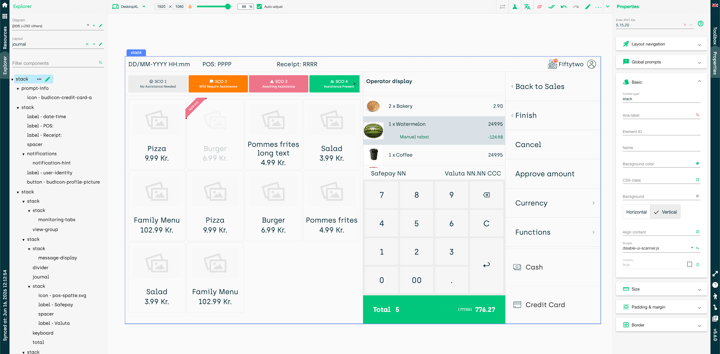 POS Designer view showing journal lines, article images, and checkout layout configuration.
Selected add-ons on an article, such as variants or modifiers, can also be edited or updated. Combined with instant quantity updates directly from the journal line, this gives cashiers a more direct way to make common basket changes.
These are small interface moments, and they matter in the store. A cashier should be able to correct a quantity, update a selected add-on, enter a number or recognize an article without slowing down the flow.
Better overview, monitoring and support
POS Designer improvements also support the teams responsible for monitoring and troubleshooting POS behavior.
Responsive Monitoring Tabs make it possible to show up to eight self-checkout tabs on a 1920x1080 screen without scrolling. That gives teams a clearer overview when monitoring several self-checkout units and helps support remote assistance in the store.
POS UI application logs can now be sent to the till for events and actions that occur in POS UI. If a production issue appears later, those logs can help teams investigate what happened faster.
Together with layout simulation, this gives teams better ways to design, observe and troubleshoot POS behavior before and after it reaches the store.
Built for checkout flows that hold up in the store
As checkout flows become more varied, the design work behind them becomes more important.
Retailers need flexibility in the POS experience. Store teams need flows that are clear under pressure. Product and support teams need better ways to test, monitor, and follow up.
The latest POS Designer improvements bring those needs closer together.
Clearer template information gives teams a better starting point. Layout simulation and monitoring improve validation and overview. Journal line images, variants, modifiers, instant quantity updates, and keyboard input improve the cashier experience. POS UI logging helps teams investigate issues faster when something needs attention.
Together, these updates make POS Designer easier to work with for the teams building checkout flows and more reliable for the people using those flows in the store.
%201.jpg)